
DNS Meaning: How Domain Names
Turn Into IP Addresses
What’s DNS? DNS meaning in simple words: DNS stands for Domain Name System, the internet’s phonebook. It turns a name you can remember, like example.com, into the IP address a computer needs to find that site.
Before You Start
Table of Contents
What’s DNS? (DNS Meaning and Full Form)
The DNS meaning is easy to remember: it stands for Domain Name System. Its job is simple. It links the names people like to use with the numbers machines actually need.
So what’s DNS in everyday terms? Think about your phone’s contact list. You tap “Mom” and the call connects. You never memorized her number, and you don’t have to. DNS gives websites that same convenience.
Websites live on servers, and each server can be reached at its own IP address. It might look like 192.0.2.1 (IPv4) or 2001:db8::1 (IPv6). Humans are bad at remembering strings like that. Computers are bad at guessing names. DNS stands between the two and translates, and that is the whole DNS meaning in one line.
People often mix up three terms, so here’s the difference:
| Term | What it means | Example |
|---|---|---|
| Domain name | The readable name of a website | example.com |
| IP address | The number a server is reached at | 192.0.2.1 |
| URL | The full web address, with protocol and page | https://www.example.com/blog |
A few quick facts:
- Paul Mockapetris designed DNS in 1983. Before that, one shared text file called HOSTS.TXT listed every computer name, and people updated it by hand.
- DNS mostly runs on port 53.
- No one machine stores every answer. Thousands of servers share the job between them.
How Does DNS Work? Step by Step
To see the DNS meaning in action, say you type example.com and hit Enter. Your device has no idea where that site lives, so it starts asking around. If nothing is saved anywhere, the trip looks like this:
- Your browser sends the question to a DNS resolver. Your internet provider normally runs it, though plenty of people use a public one from Google or Cloudflare.
- The resolver contacts a root server and asks who handles
.comnames. - The root server doesn’t know the site, but it points to the
.comTLD server. - The resolver asks the TLD server about
example.com. - The TLD server replies with the address of the domain’s own nameserver.
- The resolver asks that nameserver directly.
- The nameserver gives back the IP address, for example
192.0.2.1. - The resolver hands the IP address to your browser, and the browser loads the page.
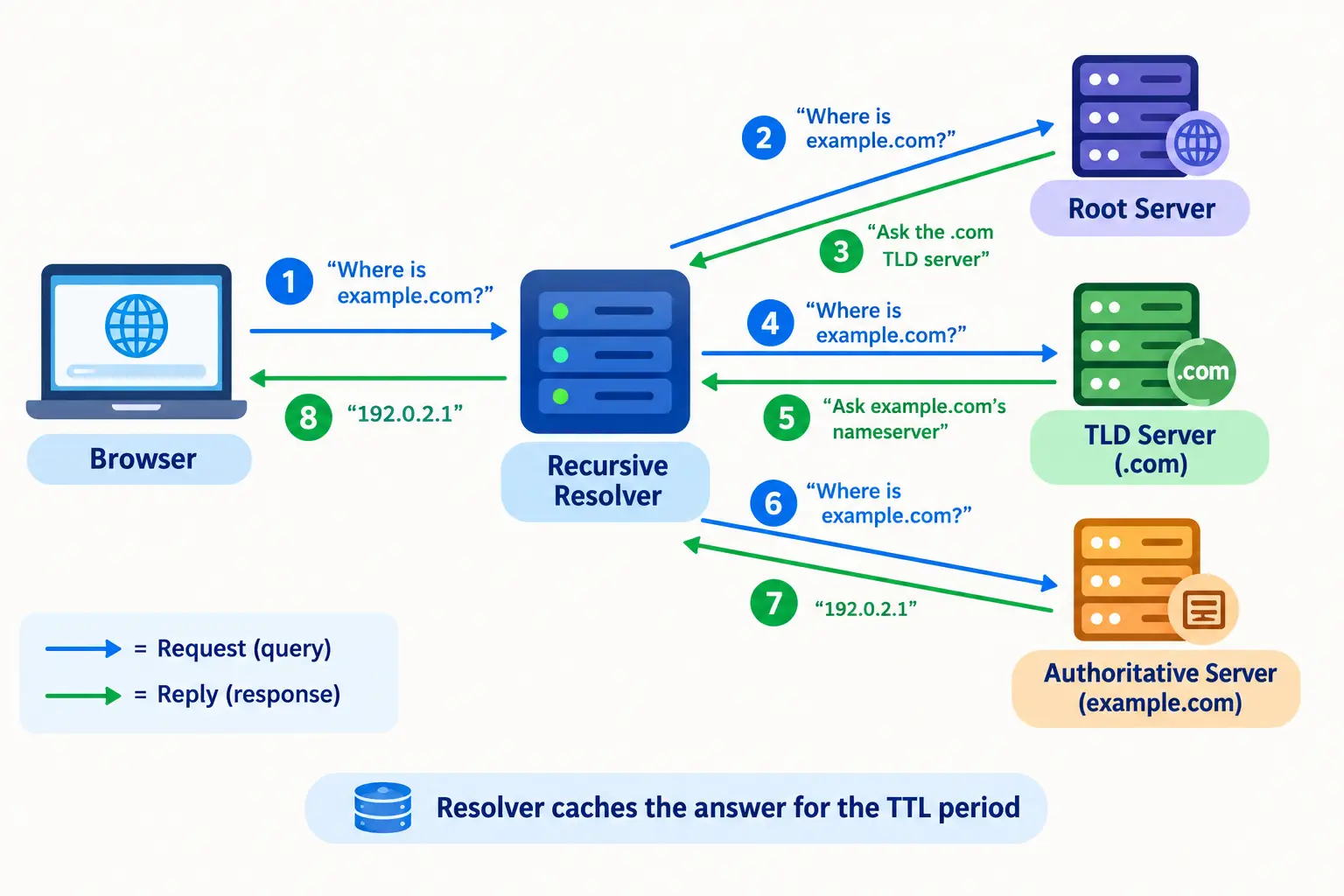
The whole trip normally takes only a fraction of a second.
A real-life comparison: You’re in a new city looking for a shop. You ask a taxi driver (the resolver). He calls the city office (root), which sends him to the right district office (TLD), which sends him to the shop owner’s own records (authoritative server). Finally, he takes you to the exact street address, which is the IP.
Three types of DNS queries
- Recursive: you ask the resolver to do all the work and come back with a final answer, or an error.
- Iterative: a server replies with whatever it knows, which is often just a referral to another server, and the asker follows it from there.
- Non-recursive: the server already knows the answer, so it replies right away.
In real life, your device asks the resolver for the full answer, which is a recursive query. The resolver then sends iterative queries to the root, TLD and authoritative servers.
Watch it happen
You can see the DNS meaning for yourself in a terminal:
nslookup example.com
dig +trace example.com
nslookup returns the IP address that belongs to that name. dig +trace (Mac, Linux, or Windows with extra tools) walks you through each hop from the root down to the final answer.
Types of DNS Servers
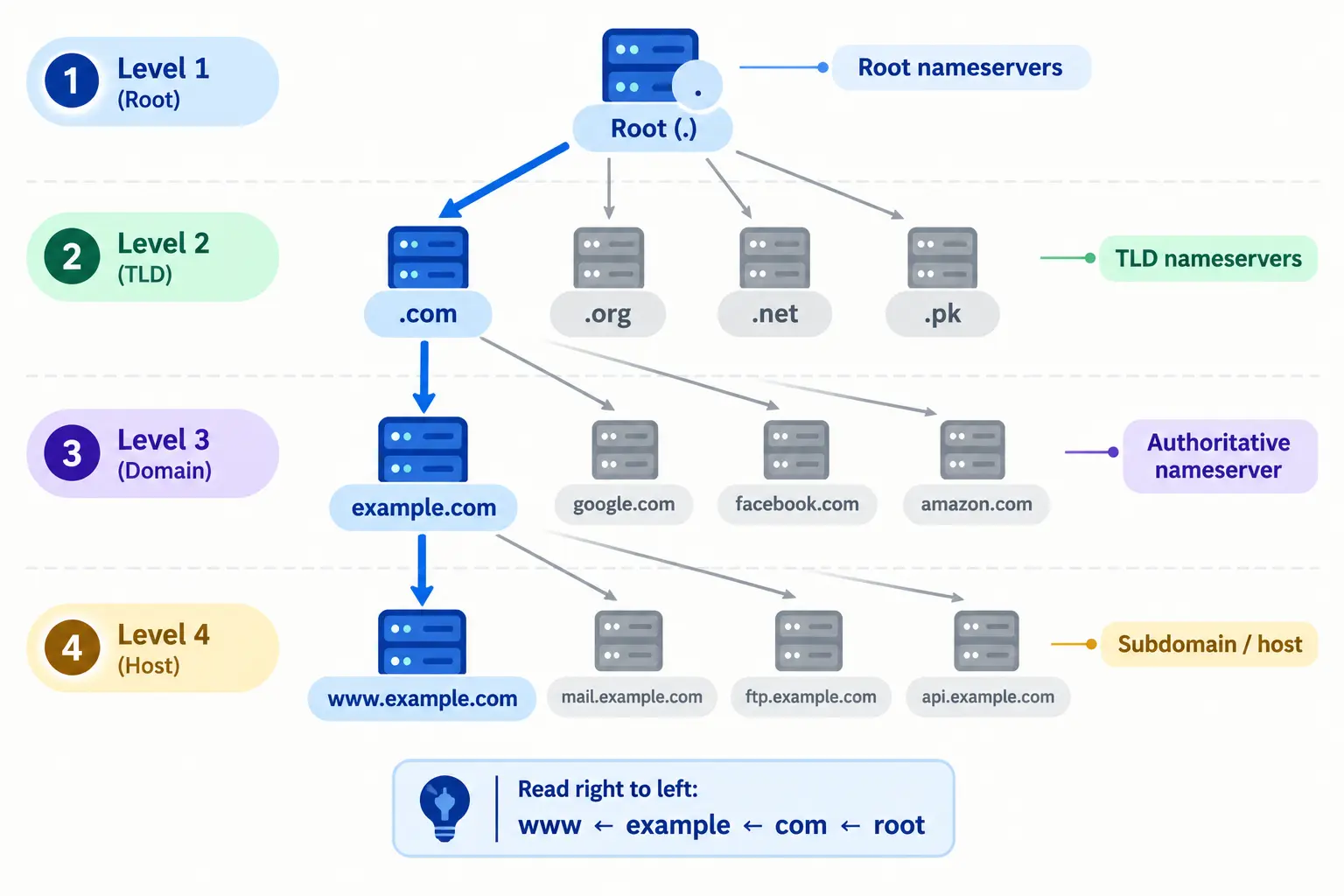
To understand the DNS meaning better, picture it as a tree: you read a domain from right to left. In www.example.com, www sits under example, which sits under com, which sits under the root. Four kinds of servers split the work.
Recursive DNS Server
This one does the legwork for you. You’ll also hear it called a resolver.
- It takes your request and, if needed, visits the root, TLD and authoritative servers.
- It remembers answers for a while, so repeat visits are quicker.
- It might belong to your ISP, your workplace, or a public provider like Google DNS or Cloudflare.
Does a recursive server use iterative queries? Yes. “Recursive” describes what it does for you (finish the whole job). “Iterative” describes how it talks to the other servers (one hop at a time).
Root Nameserver
Root servers sit at the very top. They don’t know where websites live. They only know who looks after each ending, like .com, .org or .pk.
- There are 13 root server identities, labeled A to M.
- Each identity is run from many locations worldwide using anycast, so a nearby copy usually answers you.
TLD Nameserver
A TLD (top-level domain) server looks after one ending, such as .com. It keeps a list of domains under that ending and which nameservers each one uses.
So how does it know your domain’s nameserver? When you register a domain, you (or your registrar) set its nameservers. The registrar passes that to the registry, the organization that runs the TLD, and the registry stores it as NS records. If the nameserver lives inside the same domain, like ns1.example.com, the registry also stores a glue record. That’s just the server’s IP address, so the lookup doesn’t go in circles.
Authoritative Nameserver
This is the last stop. It stores the real records for a domain and gives the official answer.
- A primary server holds the original records.
- A secondary server keeps a copy as backup.
- Most site owners use the nameservers from their host or DNS provider.
| Recursive server | Authoritative server | |
|---|---|---|
| Main job | Finds answers for users | Stores answers for domains |
| Who talks to it | Your device | Resolvers |
| Keeps records? | Only temporary copies | Yes, the originals |
| Example | Google DNS, your ISP’s resolver | Your DNS host |
What Are DNS Records?
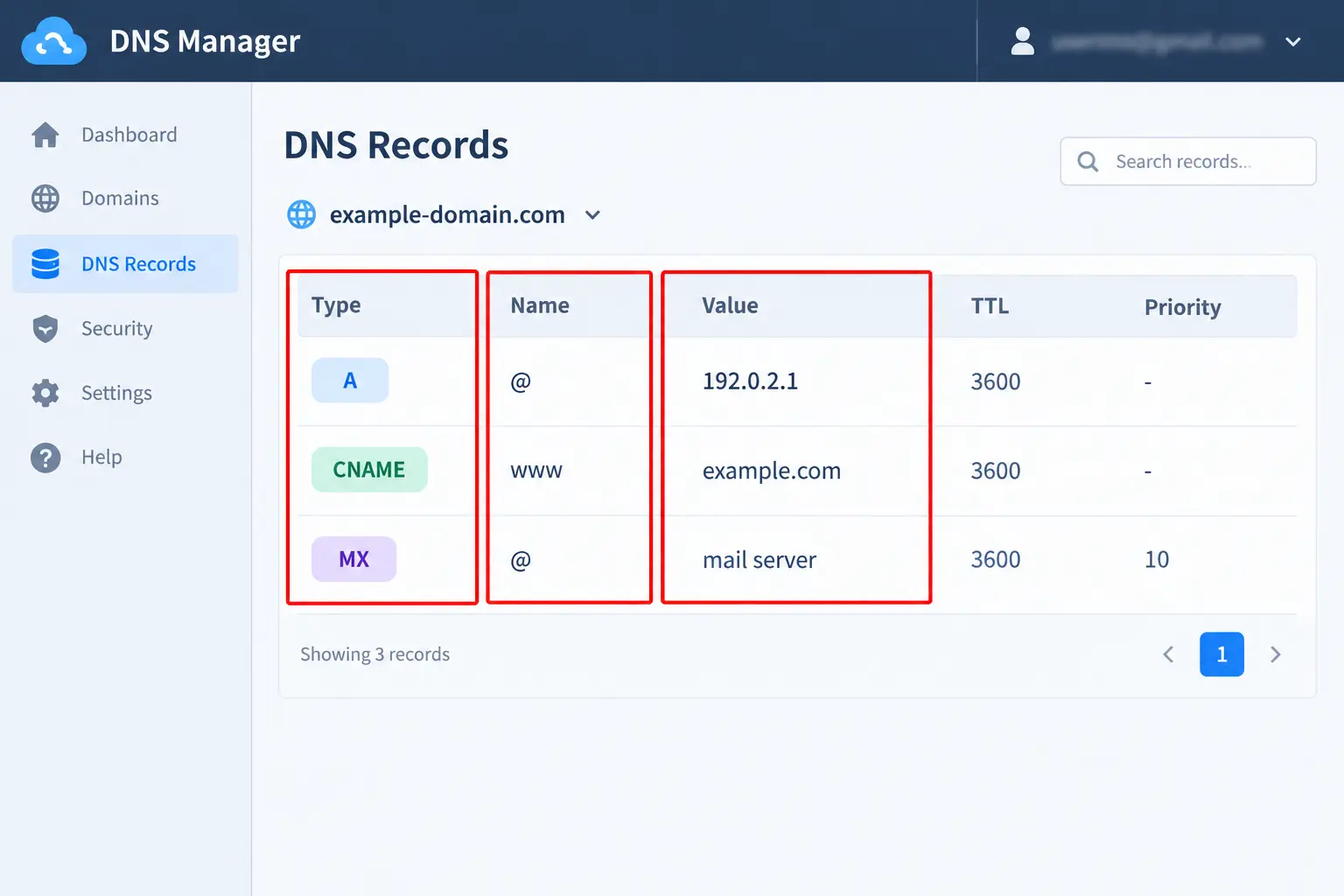
Beyond the basic DNS meaning, DNS records are small instructions saved on a domain’s authoritative nameserver. Each one answers a single question, like “Where’s the website?” or “Where should email go?”
Every record has four main parts:
- Name: the domain or subdomain it applies to
- Type: what kind of record it is
- Value: the data, such as an IP address
- TTL: how long the answer can be saved, in seconds
| Record | What it does | Example |
|---|---|---|
| A | Points a name to an IPv4 address | example.com → 192.0.2.1 |
| AAAA | Points a name to an IPv6 address | example.com → 2001:db8::1 |
| CNAME | Makes one name an alias of another | www → example.com |
| MX | Says which server receives email | example.com → mail.example.com |
| NS | Lists the domain’s authoritative nameservers | ns1.example.com |
| SOA | Holds admin details and zone settings | Primary server, serial number |
| TXT | Stores text, often for verification and email security | SPF record, verification code |
| PTR | Maps an IP address back to a name | 192.0.2.1 → example.com |
Real example: Your website is down, but your email still works. That points to a wrong A record while the MX record is fine. Each record works on its own.
DNS Caching, TTL and Propagation
Caching just means keeping an answer on hand so nobody has to repeat the same search. It happens in three places:
- Your browser: checked first.
- Your operating system: it keeps its own list of recent lookups.
- The resolver: your ISP or public DNS keeps answers for lots of users at once.
Every record carries a TTL (time to live). A TTL of 3600 means the answer can be reused for an hour.
That’s why DNS changes feel slow. After you edit a record, old copies stick around in caches until their TTL runs out. People call this DNS propagation, but nothing is really traveling around the world. Thousands of caches are simply expiring at different moments.
Tip: Planning to move your website? Drop the TTL to something like 300 seconds a day before the move. Once everything works, raise it again.
DNS Configuration: How to Set Up DNS for Your Domain
A freshly bought domain does nothing until its DNS settings point to your hosting and your email. Here’s a simple order to follow:
- Pick where DNS lives. That could be your registrar, your web host, or a separate DNS provider.
- Set the nameservers. At your registrar, enter the nameservers your DNS host gave you.
- Add an A record. Point
@(your main domain) to your server’s IP address. - Add a CNAME for www. Point
wwwtoexample.comso both versions open your site. - Add MX records. Copy the values from your email provider, such as Google Workspace or Zoho.
- Add TXT records. These usually include SPF and DKIM, which help your emails avoid the spam folder, plus any site verification codes.
- Test it. Run
nslookup yourdomain.comand give caches some time to refresh.
Mistakes that trip people up:
- Editing records at the registrar while the domain actually uses another provider’s nameservers. Always edit where the nameservers point.
- Deleting the old MX records before the new email service is ready.
- Skipping details like the priority number on MX records.
How to Change Your DNS Server
By default, your device uses your ISP’s DNS. Switching to a public one takes a couple of minutes. Popular options:
| Provider | Primary | Secondary |
|---|---|---|
| Cloudflare | 1.1.1.1 | 1.0.0.1 |
| 8.8.8.8 | 8.8.4.4 | |
| Quad9 | 9.9.9.9 | 149.112.112.112 |
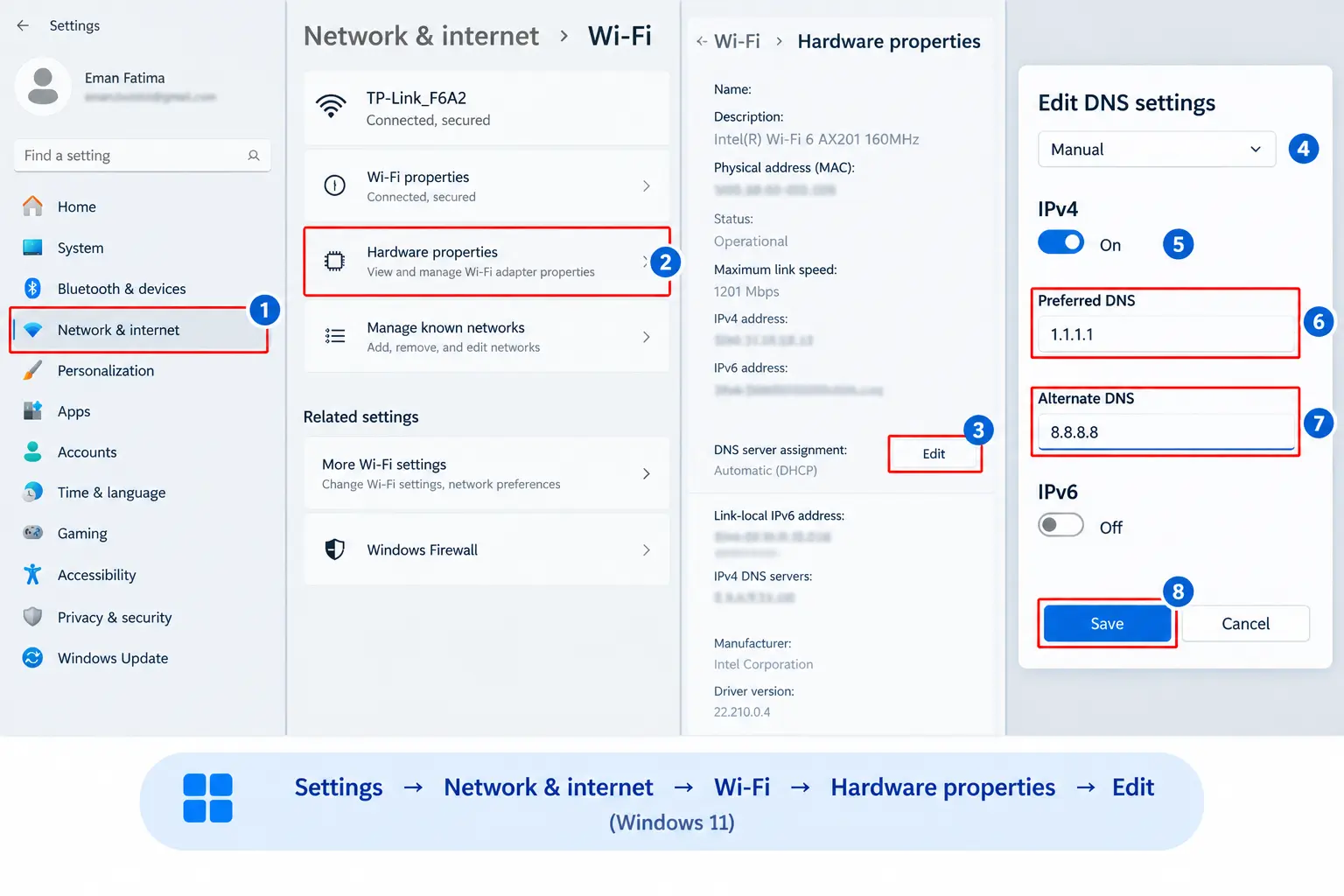
Windows 11
- Open Settings, then Network & internet.
- Choose Wi-Fi (or Ethernet), then Hardware properties.
- Next to DNS server assignment, click Edit.
- Pick Manual, switch on IPv4, type the preferred and alternate DNS, and click Save.
Android
- Go to Settings, then Network & internet, then Private DNS.
- Choose the hostname option.
- Enter
one.one.one.one(Cloudflare) ordns.google(Google), then save.
iPhone
- Open Settings, then Wi-Fi, and tap the (i) next to your network.
- Tap Configure DNS and choose Manual.
- Remove the old servers, add the new ones, and save.
Router (covers every device on your network)
- Log in to the router’s admin page, find the internet or DHCP DNS settings, enter the new servers and save.
One honest warning. A new DNS server can get around a block your ISP applies at the DNS level, but it won’t unblock everything. Some blocks work in other ways. And it doesn’t hide what you do online from your ISP.
Cloudflare vs Google DNS
Both are free, quick and dependable. The gap between them is small.
| Cloudflare (1.1.1.1) | Google (8.8.8.8) | Quad9 (9.9.9.9) | |
|---|---|---|---|
| Main focus | Speed and privacy | Reliability at scale | Security |
| Blocks malicious sites | Optional (1.1.1.2) | No | Yes, by default |
| Encrypted DNS | Yes (DoH, DoT) | Yes (DoH, DoT) | Yes (DoH, DoT) |
| Good for | Everyday use | A simple, stable setup | Safer browsing |
- Will it speed up your internet? Not by much. DNS only handles the first step of loading a page. Your download speed stays the same.
- Which one wins? It depends on where you live and which ISP you use. Test both on your own connection with a tool like DNS Benchmark on Windows, or compare
nslookupresponse times. - Can you use both? Yes. Set one as primary and the other as secondary. If the first doesn’t answer, your device tries the second.
Your ISP’s own resolver can also be fast, especially for local websites, so compare before you switch.
How to Fix DNS Cache Problems (Flush DNS Cache)
An old cache can send you to a dead server or show errors after a site moves. Clearing it forces a fresh lookup.
Windows: open Command Prompt and run:
ipconfig /flushdns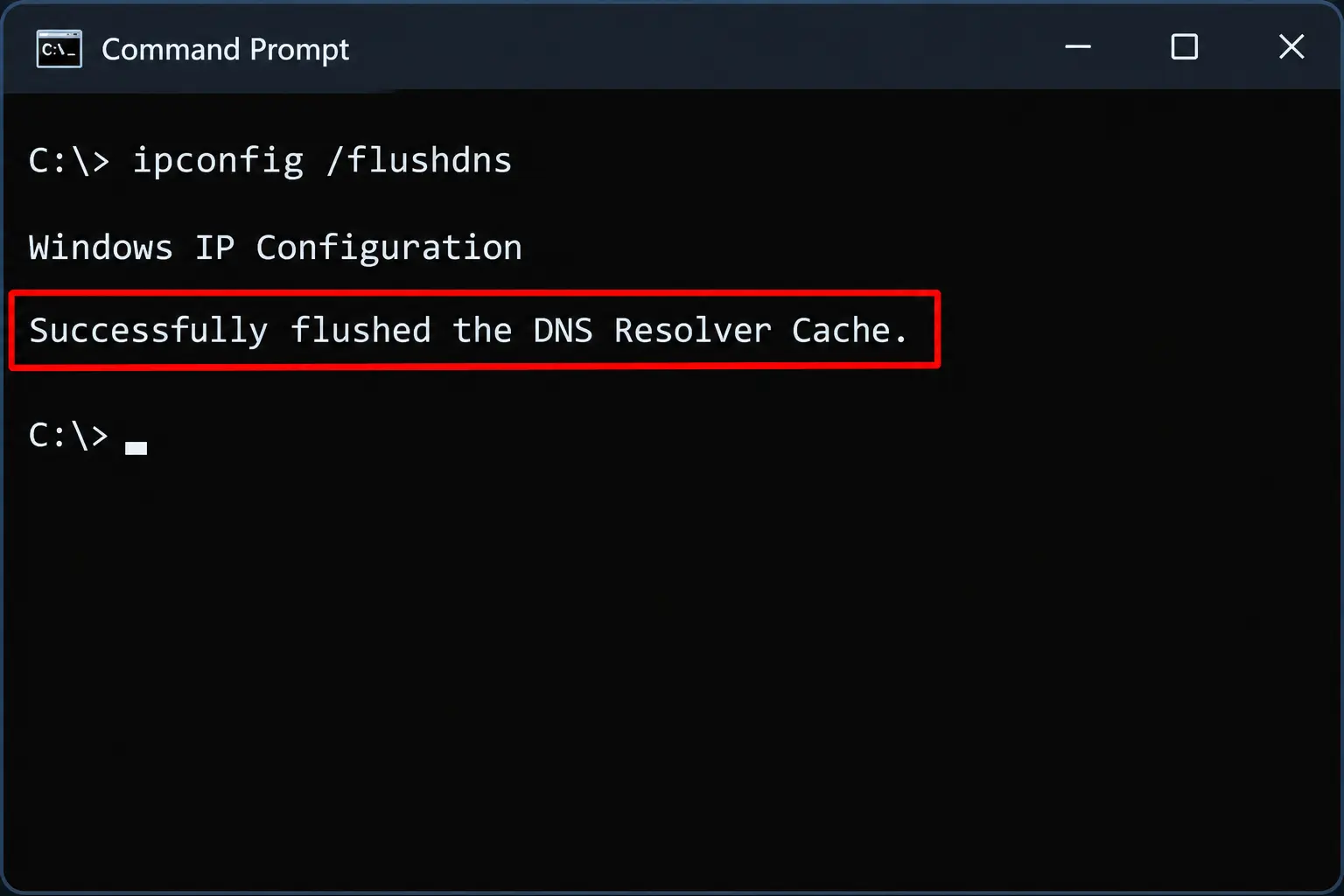
macOS:
sudo dscacheutil -flushcache; sudo killall -HUP mDNSResponderLinux (systemd-resolved):
sudo resolvectl flush-cachesChrome: visit chrome://net-internals/#dns and click Clear host cache.
Two errors you’ll probably meet, and what to try:
- DNS_PROBE_FINISHED_NXDOMAIN: the domain wasn’t found. Check the spelling, flush your cache, restart your router, or switch DNS servers.
- DNS server not responding: restart the router, try 1.1.1.1 or 8.8.8.8, and confirm your internet connection actually works.
If only one site fails and everything else loads, the problem may sit with that site’s DNS records, not your device.
DNS Security Basics
DNS was designed when the internet was small and trusting, so it needs extra protection today.
- DNS cache poisoning (spoofing): an attacker slips a fake answer into a resolver’s cache and sends people to the wrong site.
- DNSSEC: adds digital signatures to DNS answers so resolvers can check they’re genuine. It proves an answer is real, but it doesn’t hide it.
- DoH and DoT: DNS over HTTPS and DNS over TLS encrypt your requests so others on the network can’t easily read them.
“Private DNS” is a confusing label. Often it just means encrypted DNS. The lookup still uses the public DNS system, only the connection is protected. Companies also run truly private DNS for their internal networks, which is a different thing.
A few easy habits help: use a trusted resolver, turn on encrypted DNS where you can, enable two-factor authentication at your domain registrar, and delete DNS records for services you no longer use.
Frequently Asked Questions
What’s DNS in simple words?
DNS is the internet’s phonebook. It turns a website name like example.com into an IP address, so your browser knows which server to open.
What is the full form of DNS?
The DNS meaning is simple: it stands for Domain Name System. It translates domain names like example.com into IP addresses so browsers can find and open websites.
How does DNS work?
Your device asks a resolver for a domain’s IP address. If the answer isn’t cached, the resolver asks the root, TLD and authoritative servers in turn, then sends the IP address back to your browser.
What is the difference between a recursive and an authoritative DNS server?
A recursive server searches for answers on your behalf and caches them. An authoritative server stores the original records for a domain and gives the official answer.
What are DNS records?
DNS records are instructions stored for a domain. Common ones are A and AAAA (IP addresses), CNAME (aliases), MX (email), NS (nameservers) and TXT (text and verification).
Does changing DNS improve internet speed?
Usually only a little. It can shorten the lookup before a page starts loading, but it won’t raise your connection’s download speed. Results differ from network to network.
Which is better, Google DNS or Cloudflare DNS?
Both are fast and reliable. Cloudflare leans toward privacy and speed, Google toward stability. Test both on your own connection and keep the faster one.
How do I clear my DNS cache?
On Windows, run ipconfig /flushdns in Command Prompt. On macOS and Linux, use the commands shown above. In Chrome, clear the host cache at chrome://net-internals/#dns.
Conclusion
Now that the DNS meaning is clear and you know what’s DNS doing behind the scenes, you can see that every time you open a website, DNS quietly turns a name into a number. Once resolvers, records and caching make sense, slow or broken sites become much easier to sort out. Try the lookup commands on your own domain today.