
Network Administrator Skills: 7 Hands-On Skills to Master
Search “network administrator skills” and you’ll see the same ten words on every page: communication, problem-solving, teamwork. None of that’s wrong exactly, it just doesn’t tell you what to do when a switch goes dark at 2 AM. That’s what this guide to network administrator skills is actually about — real commands, a lab you can rebuild yourself, and the stuff nobody puts in a job description.

Before You Start
Table of Contents
Networking Fundamentals Every Admin Needs
Nobody needs to memorize an RFC to do this job well. Three things matter more than the rest, and pretty much everything below builds on them. These fundamentals form the base of every important network administrator skill you’ll use later in this guide.
- IP addressing. Every device needs its own address to talk on a network — same reason your house needs a street address before mail can find it.
- Subnetting. Cutting one big network into smaller pieces so departments aren’t tripping over each other’s traffic.
- The OSI model. You won’t quote it in a meeting, but it tells you where to start looking when something’s broken. Bad cable, that’s Layer 1. Switch acting up, Layer 2. Can’t route between networks, Layer 3.
Keep these three in the back of your mind. Most commands further down map to one of them anyway.
Cisco Switch Configuration: Basic Setup
Switch configuration is one of the most practical network administrator skills you’ll use on a daily basis. Plug in a brand-new Cisco switch and it just works — devices on the same VLAN can talk immediately. But “it works” and “it’s actually configured” aren’t the same thing. Straight out of the box there’s no password, no hostname, no way to manage it from anywhere but standing right in front of it.
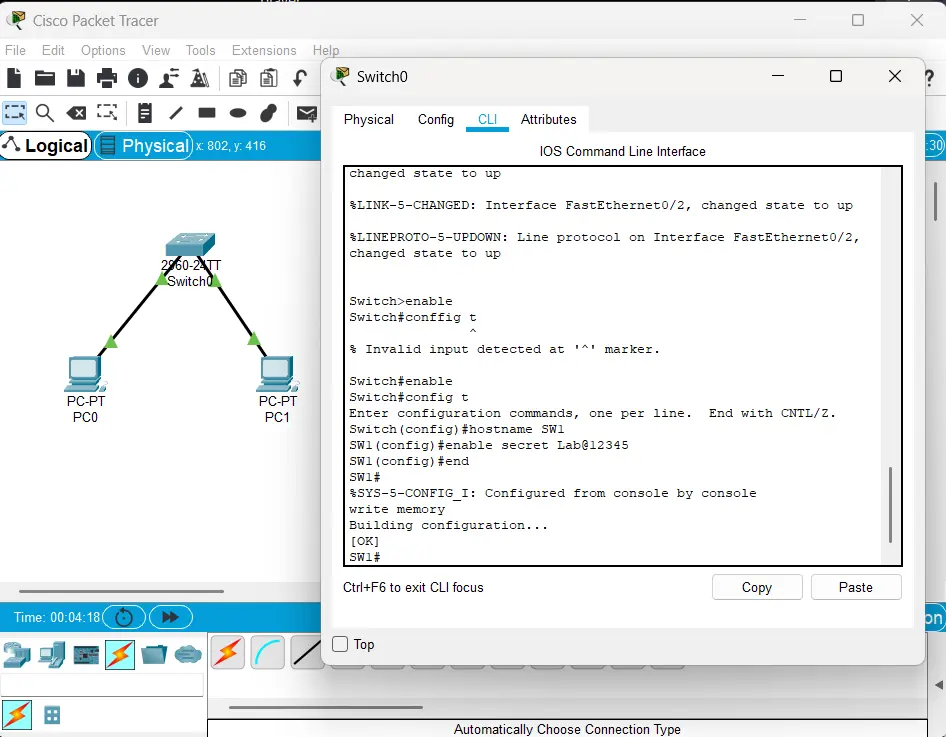
Here’s what basic setup looks like:
enable
configure terminal
hostname SW1
enable secret Lab@12345
end
write memory
Quick rundown:
hostname SW1names the device, which matters the moment you’re juggling more than one switch.enable secretputs a password on privileged mode.write memorymakes sure everything survives a reboot.
Does a Switch Need Configuration Out of the Box?
Not to pass traffic, no. To be secure or manageable, absolutely. Default settings dump every port into VLAN 1 with zero password protection. Fine for messing around at home. Not fine the second it touches a real network.
Running Config vs Startup Config
Fair question, and one that trips up a lot of people early on.
- Running config is live. Type a command, it’s active immediately.
- Startup config loads back up after a reboot.
Forget write memory and every change you made today just vanishes the moment the switch restarts. It’s happened to plenty of admins, usually late at night during a maintenance window when it’s easiest to forget.
VLAN Trunking and Inter-VLAN Routing
Think of an office with Sales on one side and HR on the other. You don’t want Sales printing to HR’s printer, and you really don’t want them poking around HR’s shared files. VLANs solve that by carving separate logical networks out of one physical switch.
A trunk link is simply a cable carrying more than one VLAN at once — usually between a switch and a router, or between two switches.
Cisco Packet Tracer VLAN Configuration
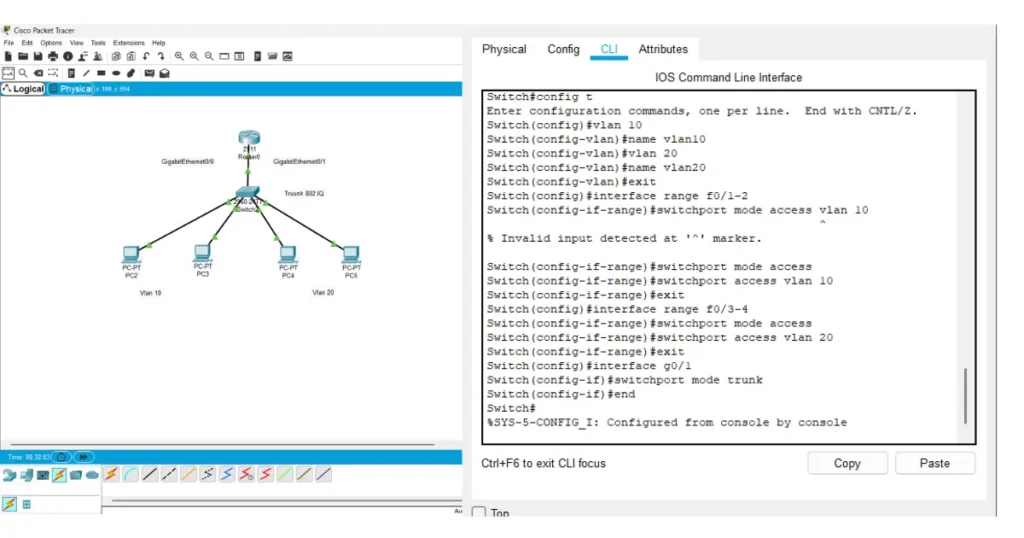
Here’s a small example: two VLANs, four PCs, one switch, one router.
vlan 10
 name SALES
vlan 20
 name HR
exit
interface range fa0/1-2
 switchport mode access
 switchport access vlan 10
interface range fa0/3-4
 switchport mode access
 switchport access vlan 20
interface gi0/1
 switchport mode trunk
PC1 and PC2 land in VLAN 10, Sales. PC3 and PC4 land in VLAN 20, HR. The link heading to the router gets set to trunk mode so both VLANs can ride over that single cable.
Where Are Trunks and Inter-VLAN Routing Used?
Trunks show up anywhere multiple VLANs need to share one link — between switches, or between a switch and a router. Inter-VLAN routing comes in whenever devices sitting in different VLANs need to reach each other, say when Sales needs a file server that happens to live in another VLAN.
Basic Router Config (Router-on-a-Stick)
The router needs to know both VLANs exist too, and that’s handled through subinterfaces:
interface gi0/0
 no shutdown
interface gi0/0.10
 encapsulation dot1Q 10
 ip address 192.168.10.1 255.255.255.0
interface gi0/0.20
 encapsulation dot1Q 20
 ip address 192.168.20.1 255.255.255.0
Each subinterface acts as the gateway for its VLAN.
Inter-VLAN Routing with SVI
Working with a Layer 3 switch instead? Skip the separate router and create SVIs directly:
interface vlan 10
 ip address 192.168.10.1 255.255.255.0
interface vlan 20
 ip address 192.168.20.1 255.255.255.0
ip routing
Most real enterprise setups lean this way — it’s quicker and cuts out a box.
How to Verify
Don’t take it on faith that this worked. Check it:
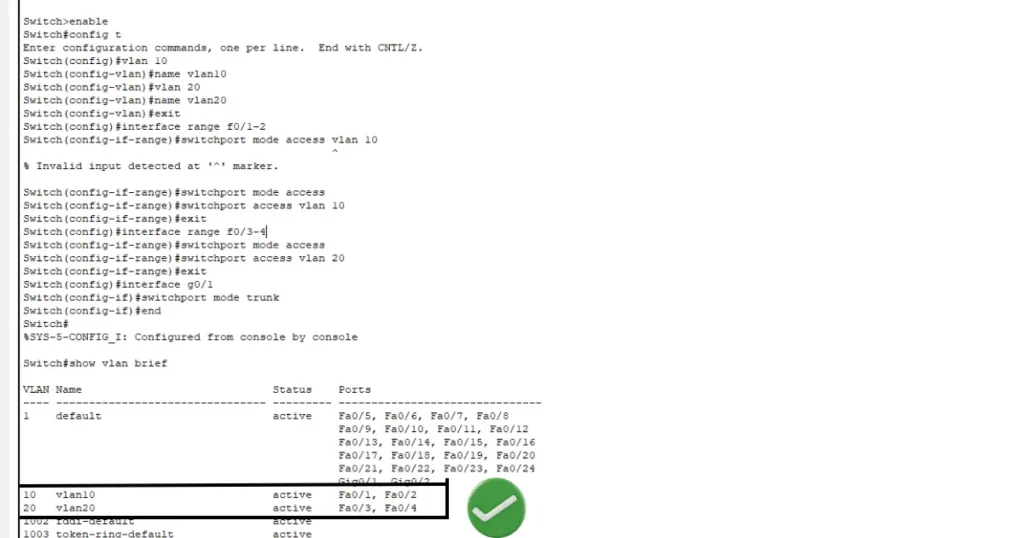
show vlan brief
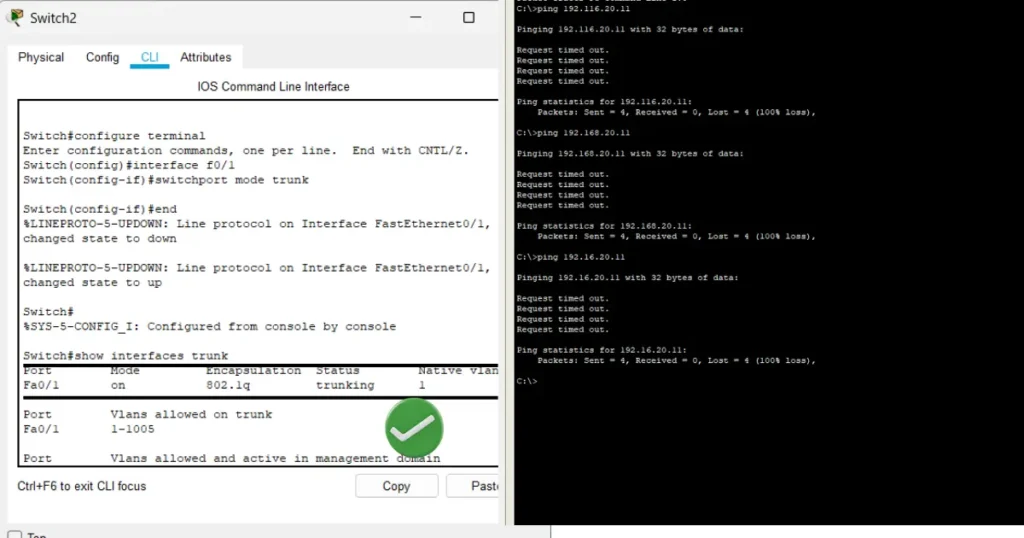
show interfaces trunk
show ip route
show vlan brief shows which ports sit in which VLAN. show interfaces trunk confirms the trunk’s actually trunking. show ip route, run on the router or Layer 3 switch, confirms both networks made it into the routing table.
Network Troubleshooting Commands
Something breaks, and half the internet reaches for Google first. Try these instead — they cover most everyday problems, and each one lines up with a layer from Section 1.
| Command | Platform | What it tells you |
|---|---|---|
ping | Windows/Linux/Cisco | Is the device reachable at all? |
tracert / traceroute | Windows/Linux | Where exactly does the traffic stall? |
ipconfig / ip a | Windows/Linux | What’s my own IP, gateway, DNS? |
nslookup / dig | Windows/Linux | Is DNS resolving properly? |
ss | Linux | What connections and ports are open right now? |
show ip interface brief | Cisco | Are interfaces up, with the right IP? |
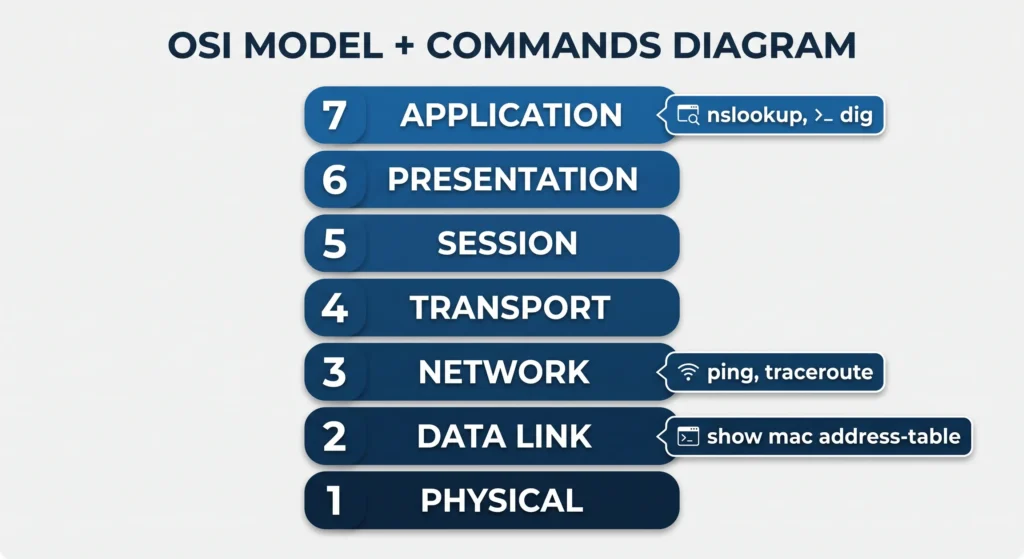
Top 5 Switch Commands
Managing Cisco switches day to day, these are the ones you’ll type over and over:
show ip interface brief– quick status of every interfaceshow vlan brief– which ports belong to which VLANshow interfaces status– speed, duplex, connected or notshow mac address-table– which device is plugged into which portshow running-config– the full active configuration
How Do You Troubleshoot Network Issues?
Three steps handle most tickets that land on your desk:
- Isolate the layer. Can you ping the gateway? No — check cabling or VLAN assignment first. Yes, but nothing past that works — probably routing or DNS.
- Test with the right command. The table above gets you there fast.
- Fix it, then write it down. Note what broke and what fixed it. Whoever handles the next ticket like this — maybe future you — will appreciate it.
Network Diagnostic Tools: Which One and When
Commands are great for a quick look. For anything deeper, you need real tools.
| Tool | Best for |
|---|---|
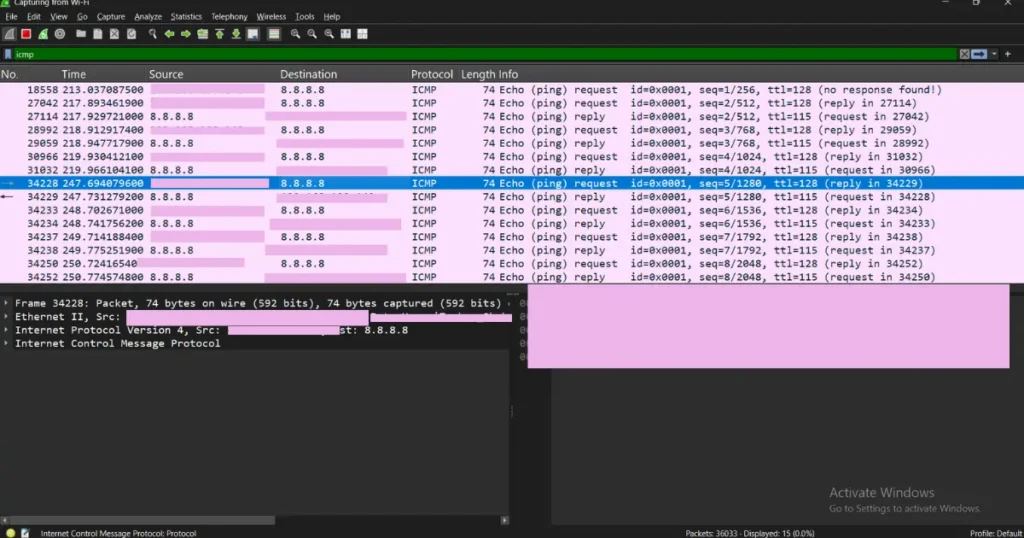
| Wireshark | Reading actual packets when you need to see what’s really moving across the wire |
| PRTG / Nagios / Zabbix | Ongoing monitoring, catching problems before users start complaining |
| MTR (ping + traceroute combined) | Finding exactly which hop is dropping packets |
Someone reports slow internet. Ping tells you there’s a connection at all. Wireshark shows what’s actually flowing. A monitoring tool like PRTG might reveal the problem had been building for hours before anyone said a word.
Wireless Access Point Setup
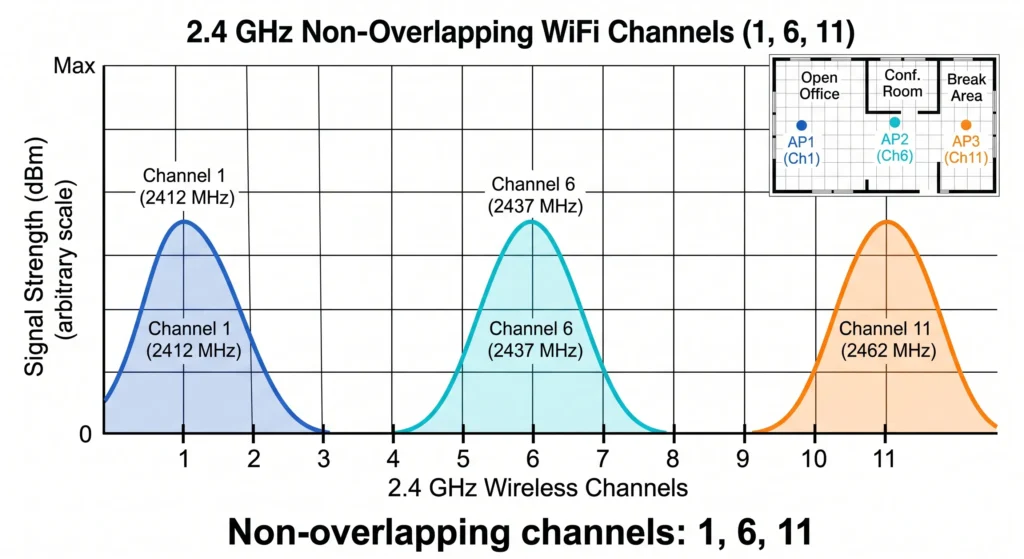
Wireless complaints outnumber almost everything else, usually thanks to two mistakes: overlapping channels, and no real plan once the space gets bigger. Getting wireless setup right is one of the more underrated network administrator skills, since most complaints trace back to a handful of avoidable mistakes.
- Survey the site first. Walk it, note dead zones, check what other networks are already sitting nearby.
- Stick to channels 1, 6, or 11 on 2.4GHz. They’re the only three that don’t overlap. Anything in between just creates interference you’ll be chasing for weeks.
- Map each SSID to a VLAN. Guest Wi-Fi gets its own VLAN, kept well away from the internal network.
- Turn on WPA3 wherever devices support it — stronger than WPA2 by a good margin.
- Bigger offices need a wireless controller, not standalone APs. It handles channel and power settings across the whole building automatically instead of you tuning thirty devices one at a time.
Security, Backup and Automation Basics
ACLs decide what traffic gets in or out, more or less like a bouncer checking IDs at the door. Config backups matter more than most people realize, right up until a switch dies on a Friday afternoon — having yesterday’s config saved turns that disaster into a five-minute fix instead of a redo-everything nightmare.
A little scripting helps too. Even something this basic saves you from pinging a list of devices by hand:
python
import os
devices = ["192.168.10.1", "192.168.20.1"]
for ip in devices:
    response = os.system(f"ping -c 1 {ip}")
    print(f"{ip} is {'up' if response == 0 else 'down'}")
A Day in the Life of a Network Admin
People ask this on forums constantly, and fair enough — job postings never actually say. A typical day tends to look like:
- Checking overnight monitoring alerts before touching anything else
- A help desk ticket about someone who can’t get on Wi-Fi
- A small switch config change, and actually remembering to save it this time
- Updating a network diagram, because it definitely won’t update itself
- Explaining an outage to a manager who’s never heard the word “VLAN”
That last one catches people off guard more than any command in this article. You can know every line of CLI here and still struggle if “the switch failed” comes out sounding like a textbook. This is exactly why real network administrator skills combine both technical commands and plain communication.
How to Practice: Home Lab Roadmap
None of this requires real hardware to learn.
- Start with Cisco Packet Tracer. It’s free, and you can rebuild every example above yourself before moving on.
- Try GNS3 next, once the basics feel natural. It behaves a lot closer to real hardware.
- Get certified. CompTIA Network+ is a solid starting point, CCNA goes deeper on Cisco specifically.
- Break things on purpose. Unplug a cable. Misconfigure a VLAN. Then fix it yourself. Troubleshooting is something you learn by doing, not by reading about it — though reading about it is a fine place to start.
Frequently Asked Questions
What skills are needed to be a network administrator?
The most important network administrator skills include VLAN setup, switch configuration, and troubleshooting, along with being able to explain a problem to someone who isn’t technical.
What does a network admin do day to day?
A mix of monitoring alerts, connectivity tickets, small config changes, and documentation that always seems to lag behind.
How long does a Cisco switch configuration change take to apply?
It’s instant on the running config, but it won’t survive a reboot unless write memory gets run first.
What are the most useful network troubleshooting commands?
ping, tracert/traceroute, ipconfig/ip a, and nslookup/dig handle most connectivity issues you’ll come across.
Where are trunk ports and inter-VLAN routing used?
Trunks carry multiple VLANs over a single link, typically between switches or up to a router. Inter-VLAN routing is what actually lets devices in separate VLANs reach each other.
Do I need to configure a Cisco switch before using it?
It’ll pass traffic with zero setup, but there’s no password and no remote management until it’s configured — so yes, for anything beyond a quick test bench.
Final Thoughts on Network Administrator Skills
Network administrator skills aren’t something you memorize off a list, they’re built by doing the work — configuring a switch, running the VLAN lab above, breaking something and figuring out why. Practicing these network administrator skills consistently is what turns theory into muscle memory.