
Network Troubleshooting Tools: Ping, Traceroute, Netstat & Nmap
A page won’t load. Or maybe a client calls saying the whole office network is acting up. The usual reaction is to restart the router and hope. But four small network troubleshooting tools, already sitting on your computer for free, can usually tell you what’s actually wrong in under five minutes.

Before You Start
Table of Contents
What Are Network Troubleshooting Commands?
These are tiny built-in programs inside your operating system’s command line. Type a word, hit enter, and you get a real answer — is a device reachable, where’s the connection breaking down, which ports are open right now.
No downloads. No setup. These network troubleshooting tools are already installed on Windows, Mac, and Linux.
How to Troubleshoot a Network Issue: Step-by-Step
Jumping straight to the fancy tool usually wastes more time than it saves when using network troubleshooting tools. A better order looks something like this:
- Ping first. Just confirm the device or site is alive at all.
- Rule out DNS. Pinging a website’s name fails but its IP address works? DNS is the problem, not your connection.
- Trace the route. Traceroute shows exactly where the slowdown or break is happening.
- Check your own machine. Netstat tells you what’s actually running and listening locally.
- Check the other side. Nmap is for when you need to see inside a remote server you don’t control.
Stick to this order and you’ll usually spot the real cause before opening a second tool.
Ping Command
Ping is one of the simplest network troubleshooting tools you’ll ever use, but it still works fine. It sends a small packet to a target and waits for a reply. Get one back, the device is alive. Nothing comes back, something’s blocking it — could be the device, a firewall, or the network itself.
People sometimes ask why not just open the site in a browser instead. Speed’s the answer. Ping gives you a yes-or-no in under a second, before you waste time on anything more complicated.
How to Ping an IP Address
On Windows:
- Open Command Prompt (type “cmd” in the Start menu)
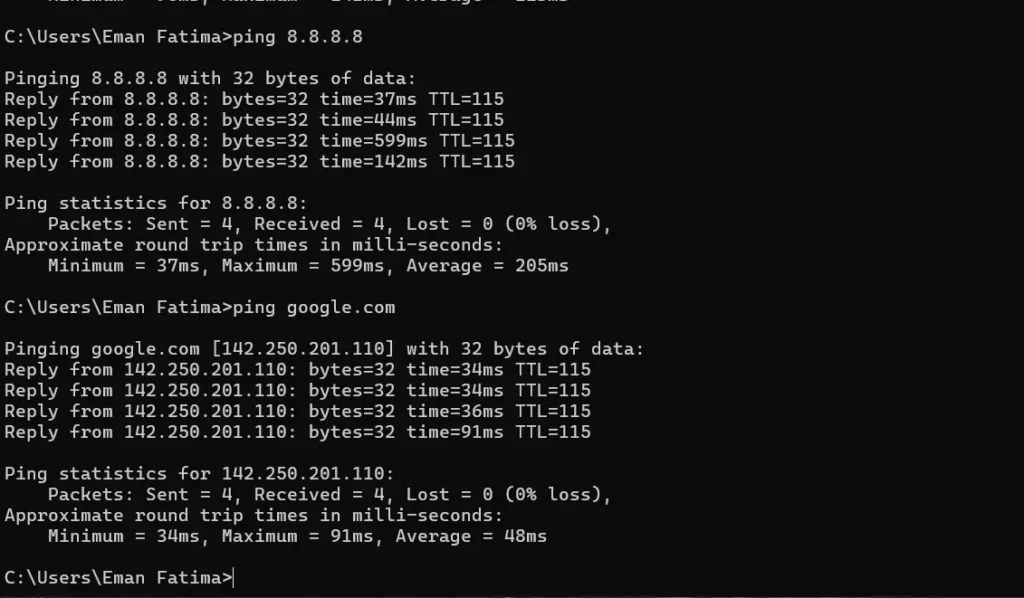
- Type ping 8.8.8.8 , hit Enter
- Watch the replies — each shows response time in milliseconds
On Mac/Linux:
- Open Terminal
- Type ping google.com
- It keeps running until you hit Ctrl + C — Linux and Mac don’t stop automatically like Windows does
Ping Command Syntax
| Platform | Command | What It Does |
| Windows | ping -t 8.8.8.8 | Keeps pinging until stopped manually |
| Windows | ping -n 10 8.8.8.8 | Sends 10 requests, then stops |
| Linux/Mac | ping -c 10 8.8.8.8 | Same idea, 10 requests |
| Linux | ping -i 2 8.8.8.8 | 2-second gap between pings |
Pinging From a Specific Adapter or Source IP
Say a laptop’s connected to Wi-Fi and a docked Ethernet cable at the same time. Ping might just pick whichever connection it feels like, which isn’t helpful if you’re testing one specific link.
- Linux:
ping -I eth0 8.8.8.8 - Windows:
ping -S 192.168.1.5 8.8.8.8
This has come in handy more than once — a laptop with two active connections and no clue which one was actually failing.
Another common question: can you ping something on your own network, like the router? Yes, and it should probably be your first move. Before blaming the ISP, ping the router — something like 192.168.1.1. No reply there means the problem’s inside the house, not out on the internet somewhere.
Reading Ping Output
- Fast reply, low milliseconds: connection’s fine
- “Request timed out”: nothing’s answering, device could be off or blocking pings
- “Destination host unreachable”: no path exists to that device, usually a local network issue
- Replies coming back slow, 200ms or more: it works, just not great
Traceroute/Tracert Command
Ping only tells you whether something’s reachable. It won’t say why it isn’t, or where along the way things fall apart. That’s what traceroute is for.
How Traceroute Actually Works
Every packet carries a small counter called TTL — Time to Live. Traceroute plays a little trick with it. First it sends a packet with TTL set to 1. The first router along the path drops that to zero and sends back a message saying, basically, “expired here.” Traceroute tries again with TTL 2, and the second router replies the same way. This keeps going, one hop further each round, until the packet actually reaches its destination.
Picture mailing a letter and asking every post office it passes through to send a postcard back confirming it went through them. A bit wasteful, sure, but it maps the entire journey step by step.
How to Run Traceroute
On Windows:
- Open Command Prompt
- Type
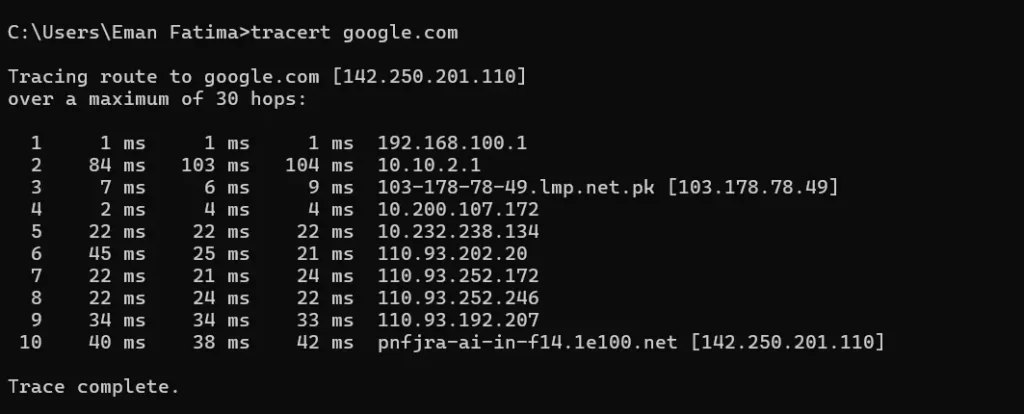
tracert google.com - Wait a bit — sometimes 20 seconds or more, depending on distance
On Linux/Mac:
- Open Terminal
- Type
traceroute google.com
Traceroute Syntax
| Platform | Command | What It Does |
| Windows | tracert -d google.com | Skips DNS lookups, runs faster |
| Windows | tracert -h 15 google.com | Caps it at 15 hops |
| Linux | traceroute -n google.com | Skips DNS lookups too |
| Linux | traceroute -m 15 google.com | Caps at 15 hops |
Reading Traceroute Results
- Times climbing gradually hop after hop: normal, each router adds a little delay
- A row of asterisks (
* * *): that hop just isn’t replying, which doesn’t always signal trouble — some routers are simply set to ignore these requests - One hop where the time suddenly spikes: that’s usually the answer. If it belongs to your ISP, that’s proof to bring up when you call support
Netstat Command
Once the network itself checks out fine, the next question is what your own computer is doing. Which programs are talking to the outside world, and through which ports?
Netstat answers exactly that — every active connection your machine currently has open.
Understanding Connection States
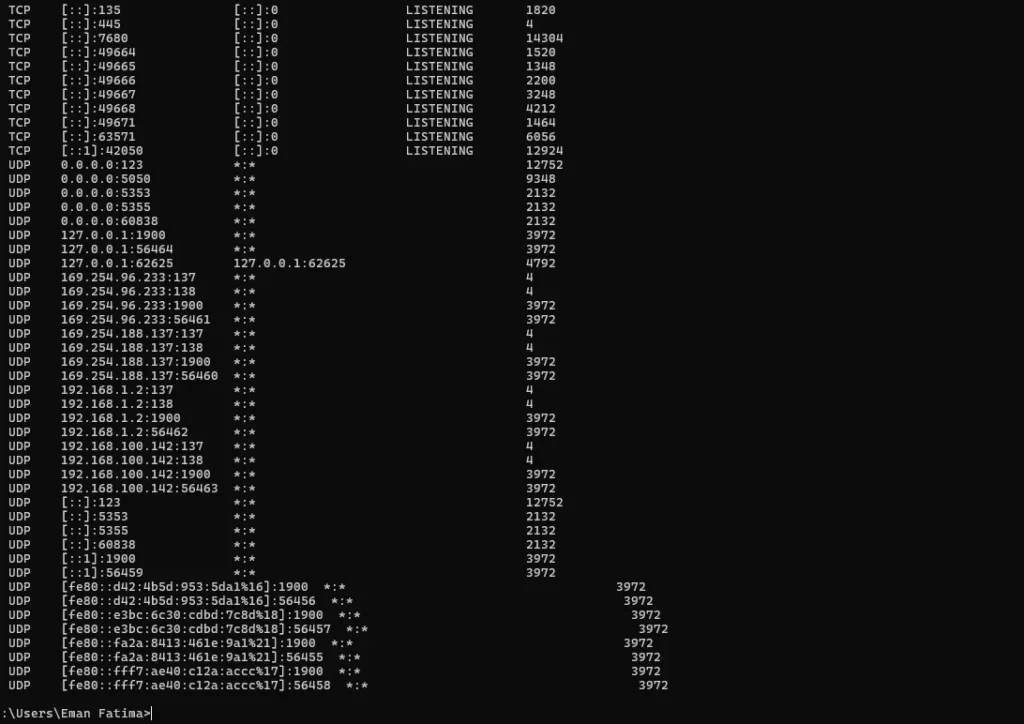
- LISTENING — a port’s open, waiting for something to connect
- ESTABLISHED — an active connection happening right now
- TIME_WAIT — a connection just closed and is finishing up
Netstat Syntax
| Platform | Command | What It Does |
| Windows | netstat -a | Lists every connection |
| Windows | netstat -ano | Same, plus the process ID for each one |
| Windows | netstat -b | Shows the actual program behind each connection |
| Linux | netstat -tulpn | Listening ports with process names attached |
How to Check Open Ports on Windows
- Open Command Prompt as Administrator
- Type
netstat -ano - Look through the list for anything marked LISTENING
- Note the PID number at the end of that line
- Open Task Manager, click “Details,” and match the PID to find out which program owns that port

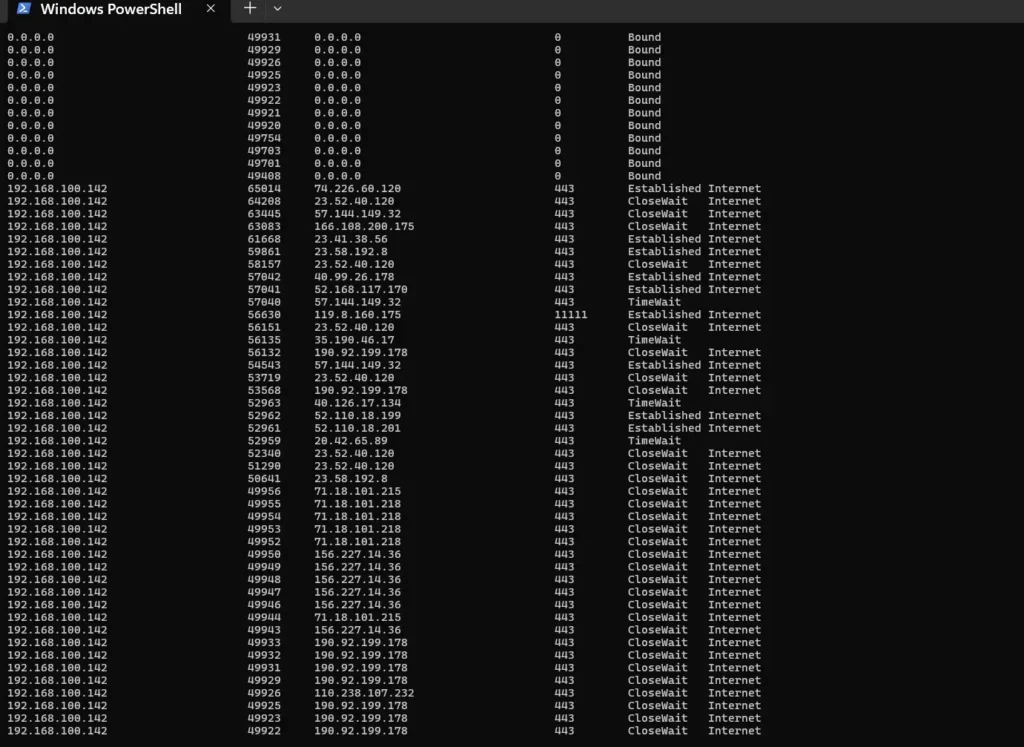
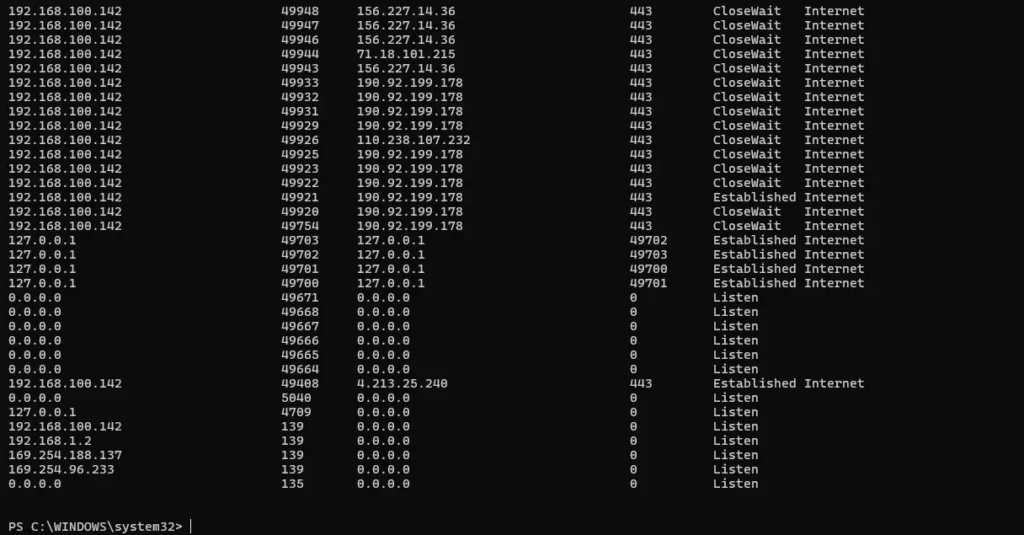
Checking Open Ports With PowerShell
PowerShell has a tidier option if the classic command prompt feels clunky:
Get-NetTCPConnectionSame information as netstat, laid out as a clean table. To see only the open ports, add this to the end:
| Where-Object State -eq "Listen"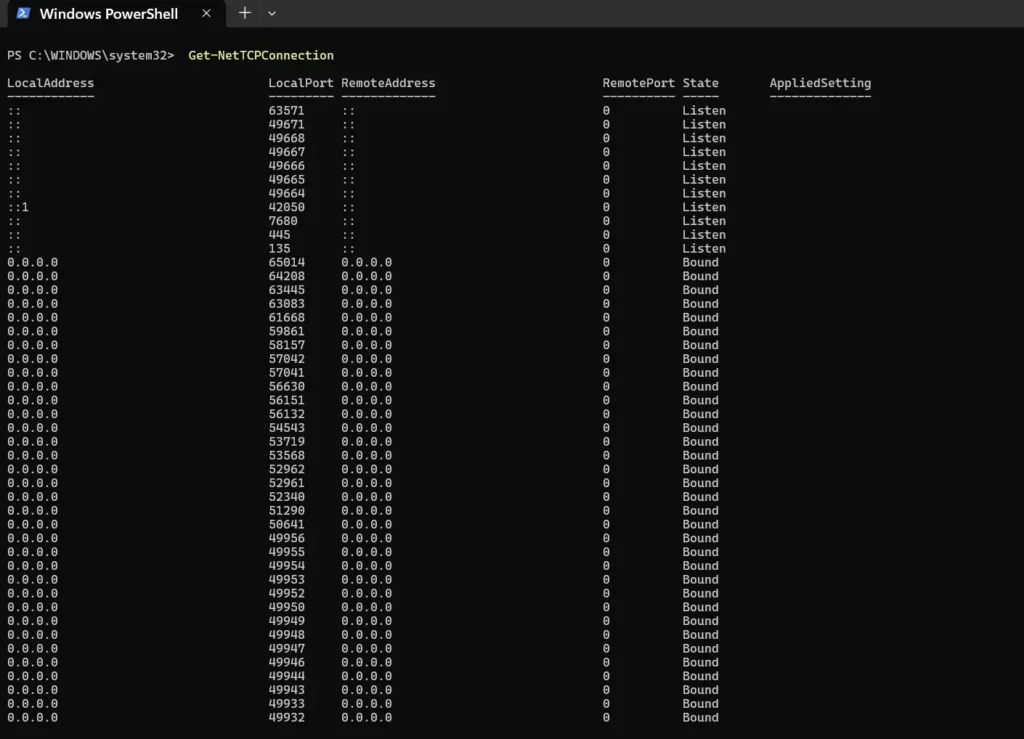
Nmap
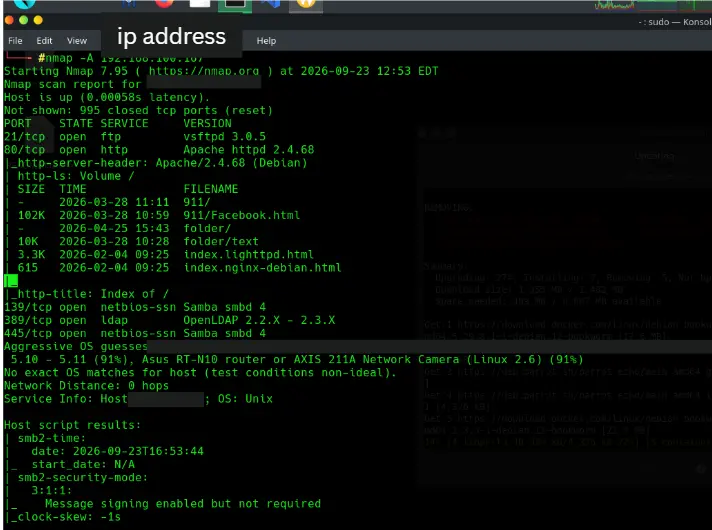
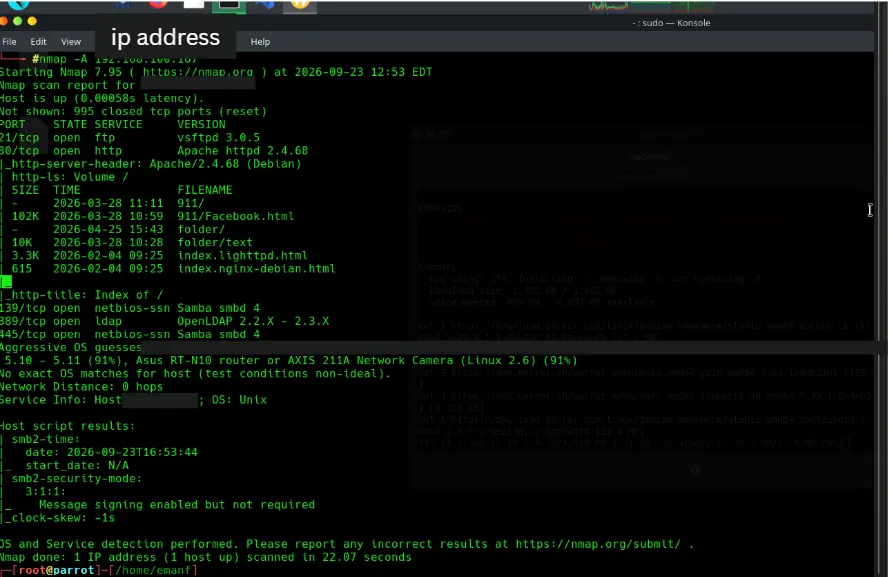
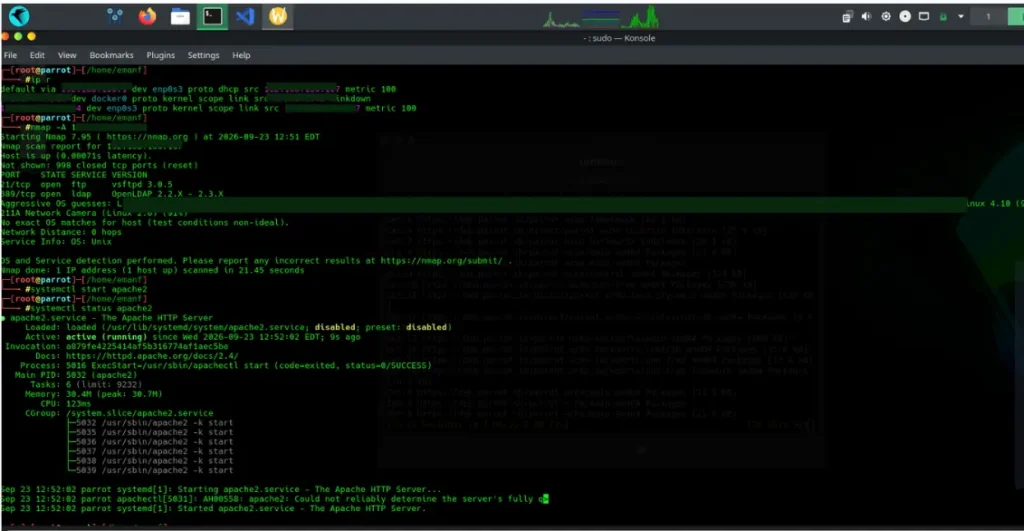
Nmap is one of the more advanced network troubleshooting tools on this list, useful when ping and netstat aren’t enough. Ping and netstat mostly cover your own machine, or one target you already know about. Sometimes though, you need to check a server you don’t have direct access to — a client’s box, maybe, or something hosted elsewhere. That’s Nmap’s job.
Nmap scans a device from the outside and reports which ports are open, what’s running on them, and often a decent guess at the operating system too.
Basic Nmap Commands
| Command | What It Does |
| nmap 192.168.1.1 | Quick scan of the common ports |
| nmap -p- 192.168.1.1 | Scans all 65,535 ports |
| nmap -sV 192.168.1.1 | Shows the version of each running service |
| nmap -O 192.168.1.1 | Tries to guess the OS |
Say a site on your own server suddenly stops loading. Running nmap -sV yourserver.com tells you almost instantly whether port 80 or 443 is even open, before you go digging through server logs for nothing.
One thing worth repeating: only scan devices or networks you own, or have clear permission to test. Scanning something that isn’t yours is illegal in most places, no gray area there.
Which Network Troubleshooting Tool Should You Use?
Choosing the right network troubleshooting tools depends on the problem you’re facing:
| Problem | Best Tool | Works On |
| Not sure a device is even online | Ping | Windows, Mac, Linux |
| Connection’s slow or drops somewhere | Traceroute/Tracert | Windows, Mac, Linux |
| Need to see what your PC is connected to | Netstat | Windows, Mac, Linux |
| Need to check ports on someone else’s server | Nmap | Windows, Mac, Linux |
New to all this? Don’t try learning all four at once. Ping and traceroute alone handle most everyday problems. Netstat and Nmap matter more once servers or security checks enter the picture.
Frequently Asked Questions
What are the ping and tracert commands in Windows?
Ping checks if a device responds at all. Tracert goes further, showing the full hop-by-hop path your data takes to get there.
Can I use ping to trace an IP address?
Not quite. Ping just confirms reachability, nothing about the route taken. Traceroute or tracert handles that part.
How do I check open ports on a Windows machine?
Run netstat -ano and look for LISTENING entries. Prefer PowerShell? Get-NetTCPConnection gives the same data in a cleaner layout.
Is the netstat command helpful? What are some examples?
Yes, one of the more useful tools to know. netstat -ano, for example, lists every connection with its process ID attached, so spotting which app is using a port takes seconds.
How does traceroute work at the protocol level?
It sends packets with a gradually rising TTL value. Each router along the way drops that TTL by one, and once it hits zero, that router sends a reply back. Do this enough times and you’ve mapped the whole path, one hop at a time.
What are the most useful CLI tools for troubleshooting on Linux?
Ping, traceroute, netstat (or its newer replacement, ss), and Nmap cover nearly everything you’ll run into day to day.
What do ping and netstat stand for?
Ping stands for Packet InterNet Groper. Netstat is just short for “network statistics.”
Why do we ping an IP address?
Mostly for a fast yes-or-no on whether a device is alive, before spending time on anything more involved.
Can you ping an IP address on a local network?
Yes, works exactly like pinging a website. Pinging the router — often something like 192.168.1.1 — is usually the smartest first step when a home or office connection acts up.
Final Thoughts on Network Troubleshooting Tools
Paid monitoring software isn’t really necessary when these four network troubleshooting tools are free and already on your computer. Ping, traceroute, netstat, and Nmap, used in that order, get you to the root of almost any connection problem — from “is this even on” to spotting a forgotten open port on a server. Learn these four well, and troubleshooting stops feeling like guesswork.